

Using Zapier App
- Print
- DarkLight
- PDF
Using Zapier App
- Print
- DarkLight
- PDF
Article summary
Did you find this summary helpful?
Thank you for your feedback
With the Zapier app installed on your workspace by the workspace administrator, you can start using the integration by simply going to the Zapier platform and creating Zaps with the QuickMeet.Chat app.
To verify the installation of the app, navigate to Administrator > Apps > Installed
The QuickMeet.Chat app on the Zapier platform can function both as a trigger and an action in creating your Zap. For a comprehensive list of available actions and triggers, refer to this list QuickMeet.Chat Zapier actions and triggers.
To illustrate the integration's functionality, we have provided some example Zaps:
Using QuickMeet.Chat trigger to QuickMeet.Chat Action
QuickMeet.Chat trigger to External Action
External trigger to QuickMeet.Chat Action
Zapier QuickMeet.Chat trigger to QuickMeet.Chat action
This example makes use of the QuickMeet.Chat New channel trigger and the Send direct message action.
This sends a direct message to a user when a new channel is created.
Zapier Send a direct message when a new channel is created
Follow these steps to create the zap.
Log in to your Zapier dashboard
Click on + Create to begin creating a new Zap
Search and select the
QuickMeet.Chatapp as triggerIn the “trigger event field,” select the
New channeleventIn the Account settings, click Sign in to your QuickMeet.Chat workspace. A window pops up requesting your workspace URL
Fill in your workspace BaseURL, then click Yes, continue
Authorize with the QuickMeet.Chat OAuth to link the currently logged-in user
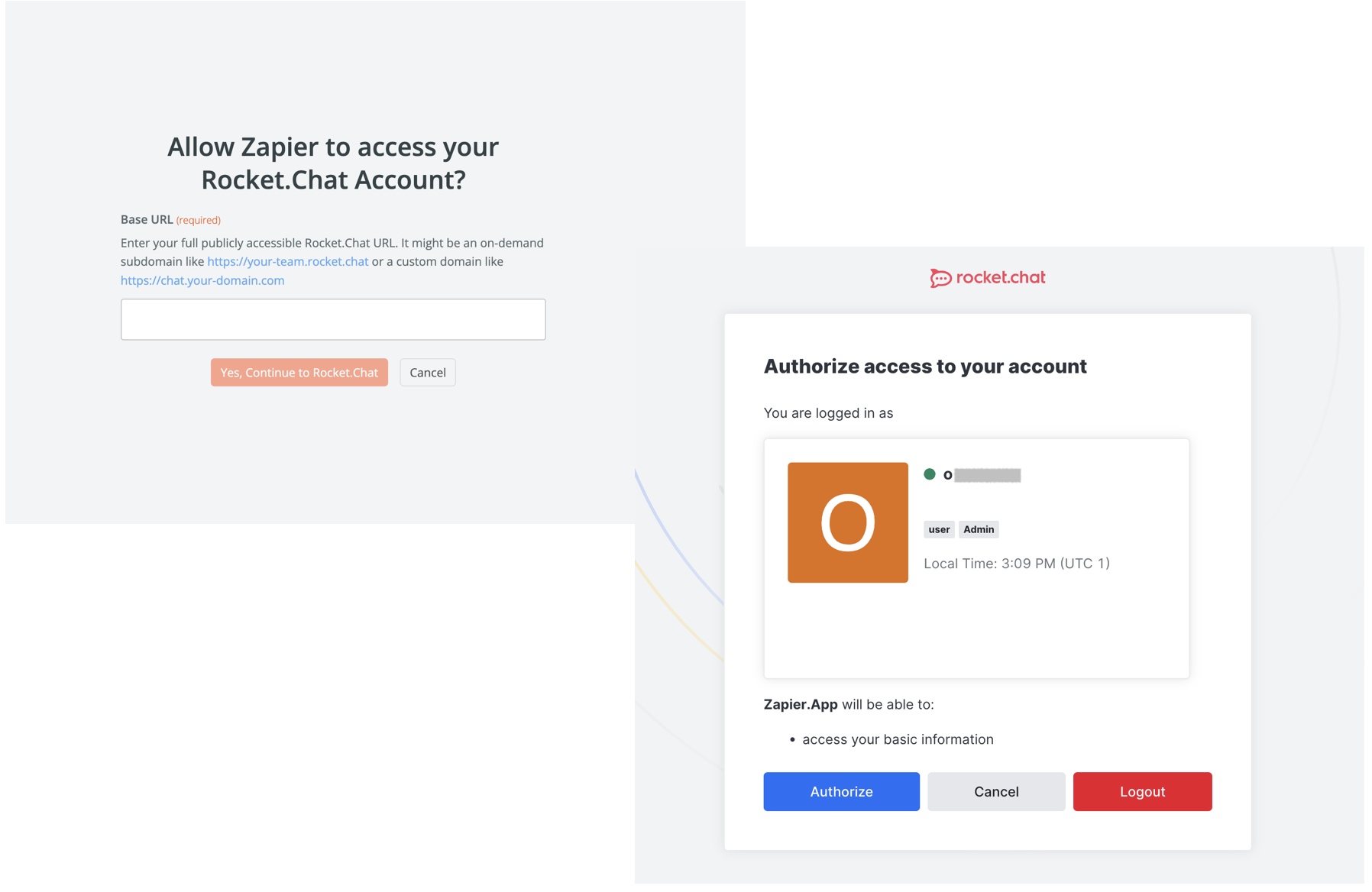
Click Continue after a successful connection then Test step
After Configuring the Zapier trigger, the next step is configuring the action.
Search and select the
QuickMeet.Chatapp as the Action appIn the “action event” field, select the
Send direct messageevent and ContinueSelect the QuickMeet.Chat workspace linked above or connect another QuickMeet.Chat workspace
Configure the desired field in the action section to format the message structure using the example data available
Message: The message text to send.
User: Select the user to be DMed.
Alias: The user to send the message as.

Click Continue, then Test step. You receive a test message as configured.
Publish the Zap
After creating the Zap, you can test its functionalities by Creating a new channel and confirm you received a message from the zapier.bot with the Alias you configured with information about a newly created channel.
Zapier QuickMeet.Chat trigger to external action
This example makes use of the QuickMeet.Chat New message posted on public channel trigger and the Google Sheets Create Spreadsheet Row in Google Sheets action.
This creates a Google Sheet row to an existing sheet when a message is posted in any public QuickMeet.Chat channel.
Zapier Create Google Sheet row when a message is posted in a public channel
Follow these steps to create the zap.
Log in to your Zapier dashboard
Click on +Create Zap to begin creating a new Zap
Search and select the
QuickMeet.Chatapp as TriggerIn the event field, select the
New message posted on public channeleventIn the Account settings, click Sign in to your QuickMeet.Chat workspace. A window pops up requesting your workspace URL
Fill in your workspace BaseURL then click Yes, continue
Authorize with the QuickMeet.Chat OAuth to link the currently logged-in user
Click Continue, select the public channel you want to monitor or enter the room ID of the public channel in your workspace.
Finally, click Test Trigger.
After Configuring the Zapier Trigger, the next step is configuring the Action.
Search and select the
Google Sheetsapp as the Action appIn the event field, select the
Create Spreadsheet Rowevent and ContinueIn the Account settings, click Sign in to authenticate, connect your Google account, and Continue
Select the desired Drive, Spreadsheet, Worksheet, and Row to write to
Click Continue, then Test step. You will see a new row added in place of the specified row above.
Publish the Zap
After creating the Zap, whenever a message is posted in the specified channel, a Google Sheet row gets created.
Zapier external trigger to QuickMeet.Chat action
This example makes use of the New Message Posted to Channel in Slack trigger and the Send private channel message QuickMeet.Chat action.
This forwards any message sent in a Slack channel to a private channel in QuickMeet.Chat.
Zapier forward Slack Messages to QuickMeet.Chat channel
Follow these steps to create the zap.
Log in to your Zapier dashboard
Click on +Create Zap to begin creating a new Zap
Search and select the
Slackapp as TriggerIn the event field, select the
New Message Posted to Channelevent and ContinueIn the Account settings, click Sign in to authenticate and connect your Slack account
Select the Slack Channel to listen to and Continue
After Configuring the Zapier Trigger, the next step is configuring the Action.
Search and select the
QuickMeet.Chatapp as the Action appIn the event field, select the
Send private channel messageevent and ContinueSelect a linked QuickMeet.Chat workspace Sign in to a QuickMeet.Chat workspace to use
Configure the desired field in the action section to format the message structure using the example data available
Message: The message text to send.
Private channel: The private QuickMeet.Chat group to post the message in.
Alias: The user to send the message as.
Click Continue, then Test step. You receive a test message in the private group as configured above
Publish the Zap
After creating the Zap, whenever a message is posted in the specified Slack channel, it gets forwarded to a QuickMeet.Chat private channel.
Was this article helpful?