

Keycloak
- Print
- DarkLight
- PDF
Keycloak
- Print
- DarkLight
- PDF
Article summary
Did you find this summary helpful?
Thank you for your feedback
Keycloak is an open-source identity and access management software. It supports user federation, OAuth, SAML, and OpenID Connect protocols. Along with role-based authorization, you can also connect to existing LDAP user directories. QuickMeet.Chat supports Keycloak configuration to securely manage your users and resources.
This guide walks you through a basic Keycloak OpenID Connect setup in QuickMeet.Chat to log in with Keycloak credentials.
Prerequisites
A QuickMeet.Chat workspace (e.g.,
https://test-quickmeet.chat).A Keycloak server (e.g.,
https://keycloak.test.com).A Keycloak realm set up for use (e.g.,
master). This guide references the realm using the placeholder<realm>.
Configure OpenID Connect client on Keycloak
A Keycloak client manages authentication between users on your Keycloak server and the QuickMeet.Chat workspace. This client securely handles the exchange of user information, allowing users to log in to QuickMeet.Chat using their Keycloak credentials.
To configure the client in Keycloak:
Navigate to the Clients section in your Keycloak server.
Click Create Client.
Set OpenID Connect as the client type.
Enter a Client ID (e.g.,
quickmeet.chat-client).Click Next to proceed to Compatibility Config and enable Client Authentication, which sets the client to the confidential access type.
Click Next to go to Login Settings and enter the Valid Redirect URIs (e.g.,
https://<workspace-url>/*).Click Save to create the new client. After saving, you can access the Credentials tab where you’ll find the client secret required for configuring QuickMeet.Chat.
Configure Keycloak in QuickMeet.Chat
Log in to QuickMeet.Chat as an administrator and navigate Administration > Settings > OAuth.
Click Add Custom OAuth and assign a unique name.
Refresh the OAuth settings page and select the newly created custom OAuth.
Enable the new custom OAuth and enter the following details:
Field | Description | Example |
|---|---|---|
URL | The OpenID Connect issuer URL for the Keycloak realm. Navigate to Realm Settings > General > Endpoints in your Keycloak server, and click OpenID Endpoint Configuration. The URL is required in the following format:
|
|
Token Path | The token endpoint is used to obtain access tokens. Enter the path from the token endpoint. |
|
Token sent via | Select whether the token is sent via |
|
Identity Token Sent Via | Select whether the identity token is sent via |
|
Identity Path | The user information endpoint is used to retrieve user data. Enter the path from the user endpoint. |
|
Authorize Path | Enter the path from the authorization endpoint. |
|
Scope | The scope defines the user access level and permissions that you have configured in Keycloak. |
|
Param Name for access token | The name of the access token. |
|
Id | The client ID that you created in Keycloak. |
|
Secret | Enter the client secret from your Keycloak client's Credentials tab. |
|
Button Text | Enter the text to be displayed on the login screen. |
|
Leave the remaining configurations as default, then click Save Changes and Refresh OAuth Services.
In test environments without an SMTP server, disable two-factor authentication under Administration > Settings > General.
Your workspace's login page now displays a Login with Keycloak button. Users can log in with their Keycloak credentials!
For more information on Keycloak server setup and roles, see Server Administration Guide.
Advanced configuration
In this section, we talk about some advanced configuration options to map and sync your user data.
Map Keycloak groups to QuickMeet.Chat rooms
Let's say that you want to add users from a Keycloak group to QuickMeet.Chat rooms. For this, keep the following points in mind:
The Map Roles/Groups to channels field must be enabled.
Provide the Keycloak groups in the Roles/Groups field for channel mapping in the OAuth settings.
In the OAuth Group Channel Map field, enter the group to rooms mapping data in the JSON format. From this mapping, users that belong to the specific Keycloak groups are inserted into all the associated QuickMeet.Chat rooms. For example, the mapping can look like this:
{
    "keycloak-group": ["quickmeet.chat-room-name-1", "quickmeet.chat-room-name-2"]
}
// users in the "keycloak-group" are added to the specified rooms
If any of the rooms don't exist, QuickMeet.Chat creates the rooms as public rooms when a user from the Keycloak group logs in.
Note that user groups would not be returned from the Keycloak OAuth response by default. So let's look at an example of how to get the groups from Keycloak.
In Keycloak, create a group. For example,
Managers. Let some users be added to this group. We will map this group to QuickMeet.Chat rooms.Add a client scope for the group for QuickMeet.Chat to retrieve, and enter the required information. For example, create a client scope called
groups.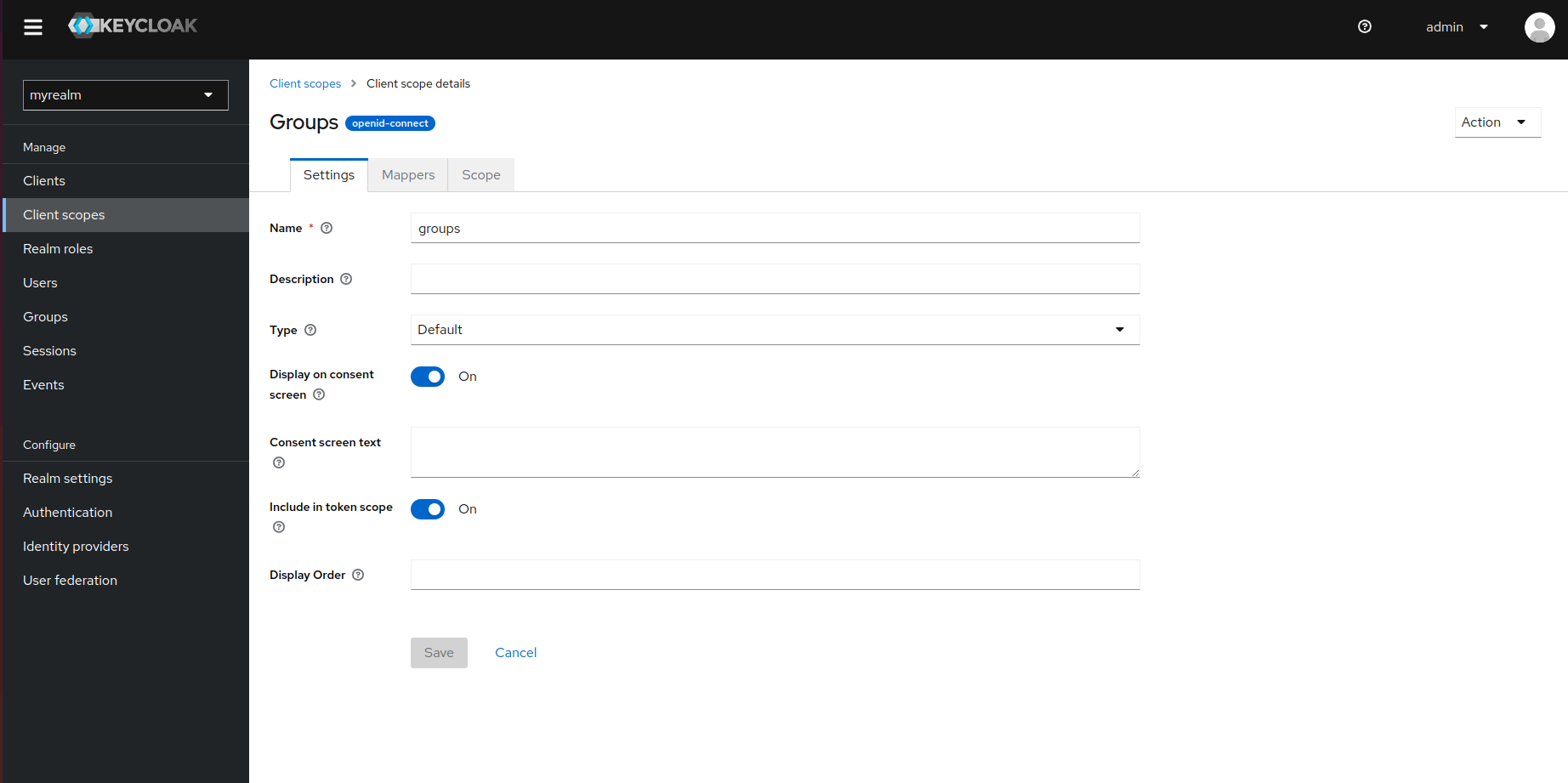
Now go to Mappers > Add Mapper > By Configuration > Group Membership. Fill in the details of the group membership called
groups. The following screenshot shows an example: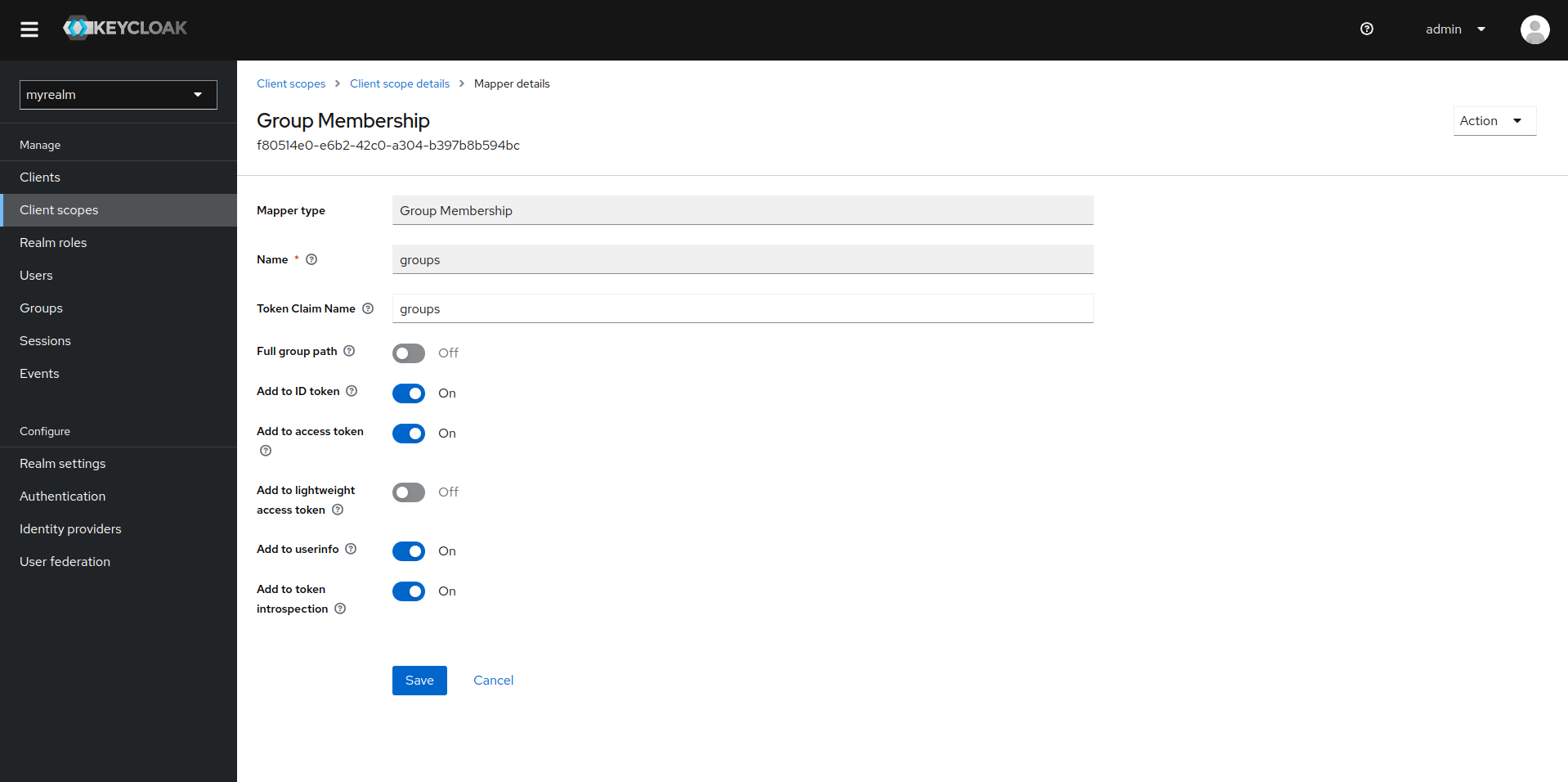
After saving this, go to Clients and select the client you are using for the QuickMeet.Chat workspace.
Go to the Client scopes tab and click Add client scope. Select the client scope for the group that you just created; in this example,
groups.
Our Keycloak group is ready to be mapped to QuickMeet.Chat. In your workspace OAuth settings, enter the following details:
Roles/Groups field for channel mapping:
groupsEnable the Map Roles/Groups to channels setting.
Enter the following in the OAuth Group Channel Map field:
{
    "Managers": "managers-channel"
}
The following screenshot shows the example:
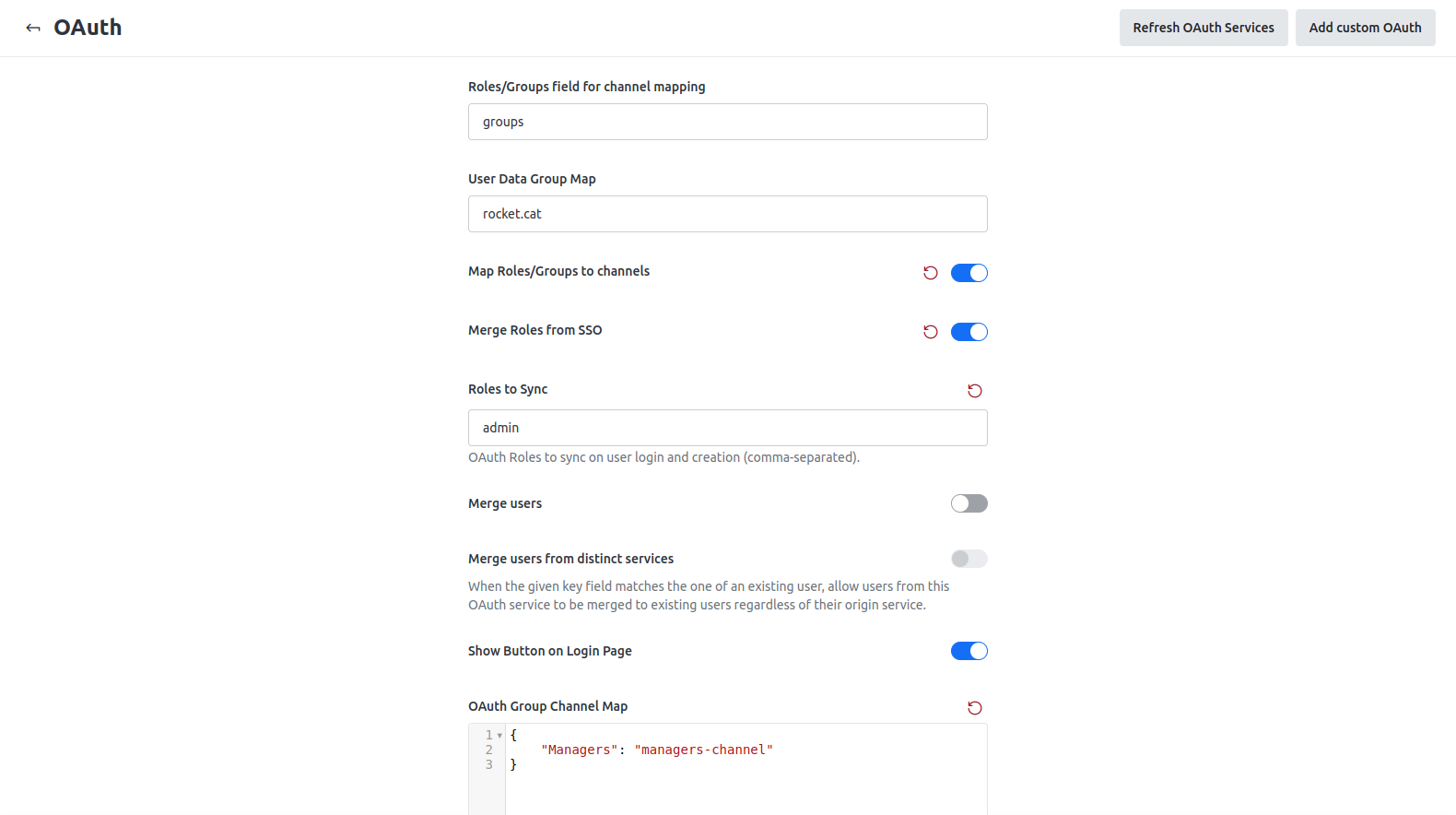
Save your changes. In this way, all users from the Managers group are mapped to the managers-channel room.
Merge and sync roles from Keycloak to QuickMeet.Chat
Keep the following points in mind:
You must set the Roles/Groups field name field as
groups.The Merge Roles from SSO option merges and mirrors the Keycloak user roles in the QuickMeet.Chat workspace. If you add or remove roles in Keycloak, this is replicated in QuickMeet.Chat.
In the Roles to Sync field, you can specify a list of role names to be mirrored on every new user login and sync.
Make sure that you create roles in QuickMeet.Chat with the same names as in Keycloak for this to work successfully.
Was this article helpful?